Microsoft Excel for The Workplace – Level 1 – Beginner
About Course
Start Your Excel Journey with Confidence!
Unlock the power of Microsoft Excel with our comprehensive, CPD Certified, Level 1 Beginner course. Designed for newcomers, this course walks you step-by-step through Excel’s core features, from navigating the interface and managing worksheets to creating formulas, formatting data, and crafting professional charts. By the end, you’ll have the knowledge and skills to operate Excel efficiently at a workplace standard, empowering you to tackle real-world tasks with ease and precision.
What Will You Learn?
- Navigate the Excel interface with confidence
- Create and manage workbooks and worksheets
- Enter, edit, and organize data efficiently
- Format data clearly and professionally
- Use basic formulas and essential functions
- Sort, filter, and work with tables
- Create charts and visuals
- Prepare, share, and print Excel workbooks
Course Content
Introduction
-
06:16
Topic 1 – The Excel Interface
In this topic, we’ll explore key parts of the Excel interface: the Backstage View, the Ribbon, and the Worksheet Interface—essential for navigating Excel efficiently.
-
Topic 1 Overview
02:52 -
Lesson 1.1 – The Backstage View
06:33 -
Lesson 1.2 – The Ribbon
15:20 -
Lesson 1.3 – The Worksheet Interface
05:20 -
Topic 1 Quiz
Topic 2 – Creating and modifying worksheets and workbooks
In this topic, you will learn the essential skills needed to create, modify, and manage worksheets and workbooks in Excel.
-
Topic 2 Overview
04:16 -
Lesson 2.1 – Creating worksheets and workbooks
04:56 -
Lesson 2.2 – Modifying Worksheets
03:40 -
Lesson 2.3 – Moving worksheets
07:28 -
Lesson 2.4 – Saving and opening workbooks
09:16 -
Lesson 2.5 – Undo, redo, repeat, and version history
08:12 -
Topic 2 Quiz
Topic 3 – Rows, columns, and cells
In this topic, you will learn how to work with the fundamental elements of Excel—rows, columns, and cells. We will explore how these building blocks interact to organize and store data.
-
Topic 3 Overview
05:24 -
Lesson 3.1 – Understanding rows, columns, and cells
05:12 -
Lesson 3.2 – Inserting rows, columns, and cells
07:32 -
Lesson 3.3 – Adjusting rows, columns, and cells
13:28 -
Lesson 3.4 – Deleting rows, columns, and cells
05:38 -
Lesson 3.5 – Merging and unmerging cells
06:44 -
Lesson 3.6 – Hiding and unhiding rows and columns
07:26 -
Topic 3 Quiz
Topic 4 – Formatting and styling data
In this topic, you will learn how to format and style your data to make your Excel worksheets more visually appealing and easier to understand.
-
Topic 4 Overview
06:52 -
Lesson 4.1 – Cell formatting
12:12 -
Lesson 4.2 – Number formats
15:52 -
Lesson 4.3 – Cell styles
07:00 -
Lesson 4.4 – Conditional formatting
12:02 -
Lesson 4.5 – Themes
04:50 -
Topic 4 Quiz
Topic 5 – Copying and pasting data
In this topic, you will learn how to efficiently copy, cut, and paste data in Excel using various methods. These essential skills will help you manage and rearrange data in your worksheets with ease.
-
Topic 5 – Overview
03:45 -
Lesson 5.1 – Copying, cutting, and pasting data
11:28 -
Lesson 5.2 – Paste options
10:04 -
Lesson 5.3 – The Clipboard
08:35 -
Topic 5 Quiz
Topic 6 – Finding and replacing data
In this topic, you will learn how to efficiently locate and modify data within your Excel worksheets using the Find and Replace features.
-
Topic 6 – Overview
03:10 -
Lesson 6.1 – Finding data
07:04 -
Lesson 6.2 – Replacing data
07:02 -
Topic 6 Quiz
Topic 7 – Basics of formulas and functions
In this topic, you will learn how to create and work with formulas and functions in Excel, which are essential for performing calculations and analyzing data.
-
Topic 7 – Overview
04:33 -
Lesson 7.1 – Formula basics
05:58 -
Lesson 7.2 – Cell referencing
07:52 -
Lesson 7.3 – Function basics
18:32 -
Topic 7 Quiz
Topic 8 – Autofill
In this topic, you will learn how to use Excel’s Autofill feature to automatically extend data, fill series, and apply formulas across multiple cells.
-
Topic 8 – Overview
04:38 -
Lesson 8.1 – Filling values, dates, and patterns
07:10 -
Lesson 8.2 – Adjusting Autofill
09:18 -
Lesson 8.3 – Filling formulas
11:45 -
Topic 8 Quiz
Topic 9 – Working with data and tables
In this topic we will equip you with the essential skills to manage your data, by using features like sorting, filtering, and Excel tables.
-
Topic 9 – Overview
06:10 -
Lesson 9.1 – Sorting data
10:42 -
Lesson 9.2 – Filtering data
11:52 -
Lesson 9.3 – Table basics
16:03 -
Lesson 9.4 – Adjusting tables
10:51 -
Topic 9 Quiz
Topic 10 – Charts and images
In this topic, you will learn how to create, modify, and format charts in Excel to effectively present data visually. You’ll also explore how to insert and customize images and shapes, enhancing your worksheets with clear, professional-looking visual elements.
-
Topic 10 – Overview
05:34 -
Lesson 10.1 – Creating basic charts
04:20 -
Lesson 10.2 – Adjusting chart data
05:23 -
Lesson 10.3 – Modifying and formatting charts
14:32 -
Lesson 10.4 – Inserting images and objects
08:40 -
Topic 10 Quiz
Topic 11 – Viewing data
In this topic, you will learn how to adjust and optimize the way you view data in Excel, ensuring accessibility and efficiency when working with large worksheets. You’ll explore various zooming techniques, workbook views, navigation tools, and the freeze panes feature to enhance your ability to interact with and manage your data effectively.
-
Topic 11 – Overview
05:21 -
Lesson 11.1 – Zooming
06:00 -
Lesson 11.2 – Workbook views
05:02 -
Lesson 11.3 – Navigation
10:05 -
Lesson 11.4 – Freezing panes
09:52 -
Topic 11 Quiz
Topic 12 – Page setup and printing
In this topic, you will learn how to set up and print Excel workbooks effectively by adjusting key page and print settings. From configuring page layout options to fine-tuning print settings, you will gain the skills needed to ensure your worksheets print exactly as intended.
-
Topic 12 – Overview
04:06 -
Lesson 12.1 – Page setup
13:30 -
Lesson 12.2 – Print settings
15:27 -
Topic 12 Quiz
Topic 13 – Sharing workbooks
In this topic, you will learn how to export Excel workbooks to different file types, such as PDFs and text files, collaborate with others by granting workbook access and creating shareable links, and use comments for clear communication with your colleagues.
-
Topic 13 – Overview
04:24 -
Lesson 13.1 – Exporting workbooks
07:40 -
Lesson 13.2 – Collaborating on workbooks
14:22 -
Lesson 13.3 – Commenting on workbooks
11:20 -
Topic 13 Quiz
Topic 14 – Getting help
Topic 14 focuses on using Excel's built-in support tools to find help when needed. You’ll learn how to use the search bar to locate data, commands, and online resources, and explore the help pane for function guides, support options, and feedback features.
-
Topic 14 – Overview
04:20 -
Lesson 14.1 – The Search bar
11:21 -
Lesson 14.2 – The Help pane
14:46 -
Topic 14 Quiz
Conclusion
-
Closing remarks
-
End of course checklist
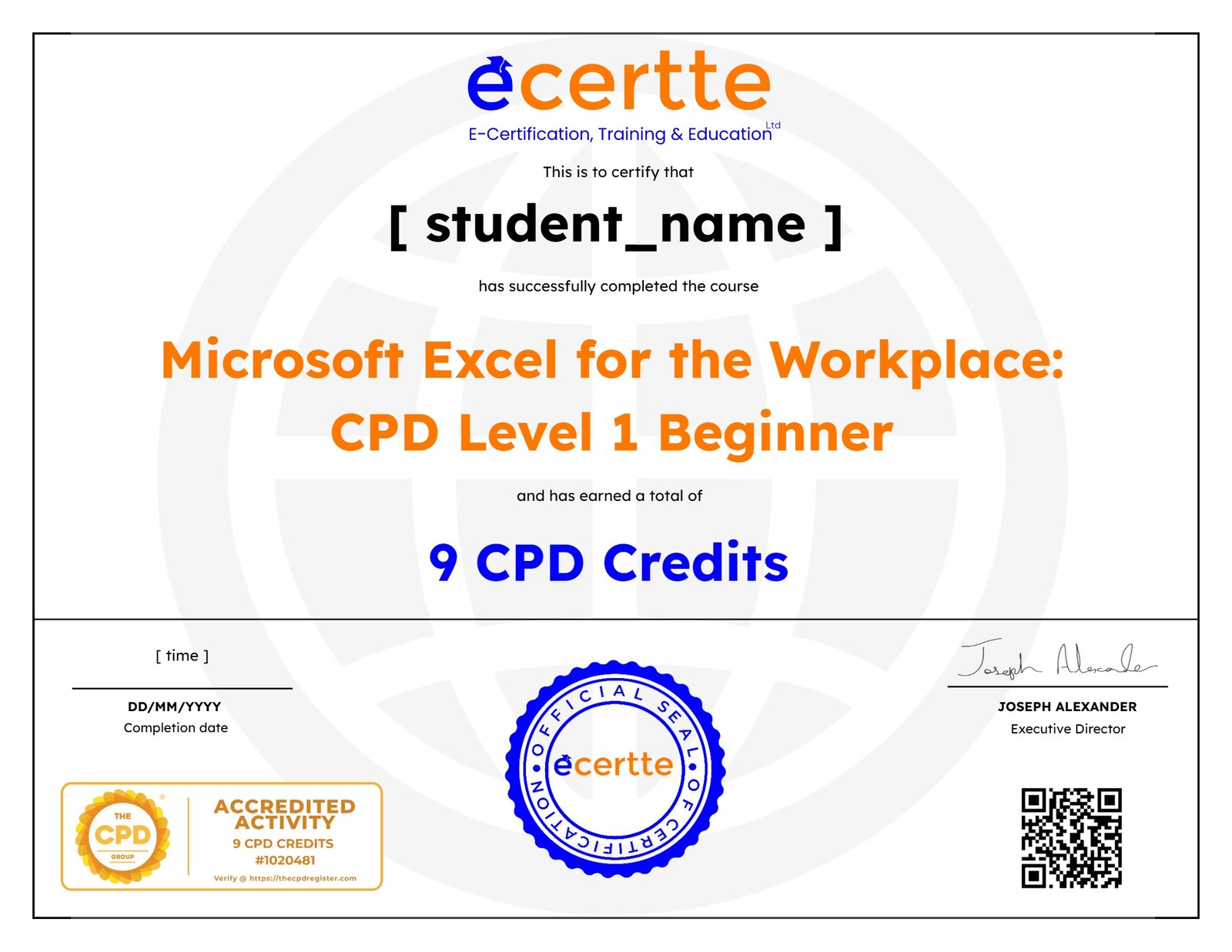
Earn a CPD certificate
Complete the course and receive a CPD-accredited certificate to showcase your professional development.
Student Ratings & Reviews

No Review Yet